How-To Guides
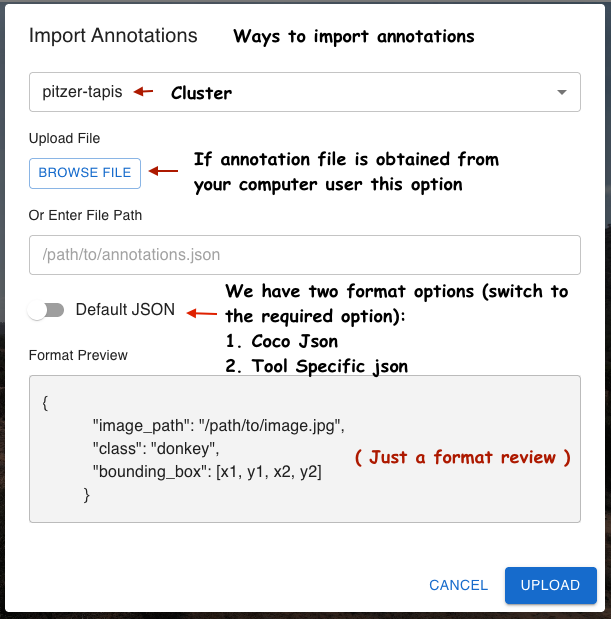
How to Import Existing Annotations
- In the Image Annotator (Step 1), click Import Annotations.
- Choose Browse to upload a local file, or enter a remote Tapis filesystem path.
- Select the file format (COCO JSON or Default JSON) using the Format Switch.
How to Save and Download Annotations
Click Save Annotations to write to a remote Tapis path, or Download to export to your local machine.
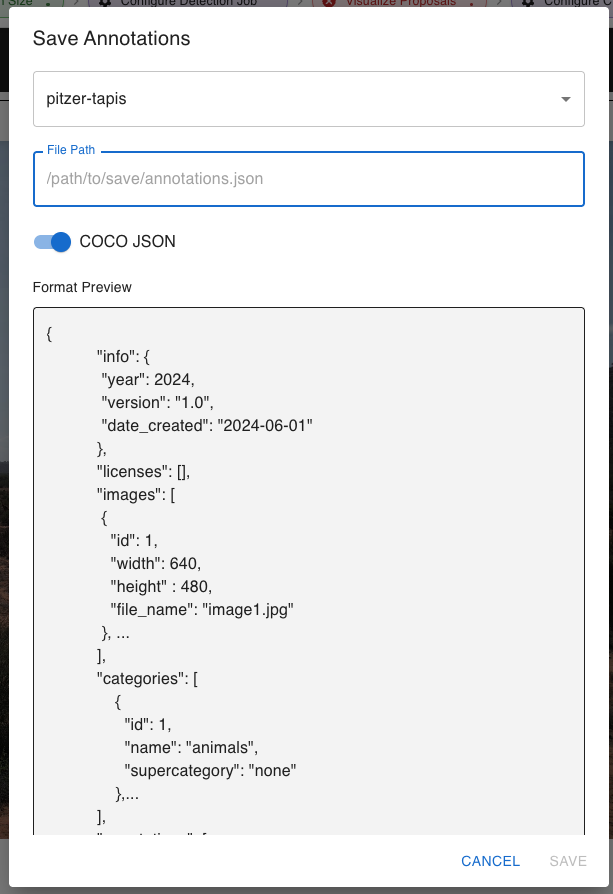
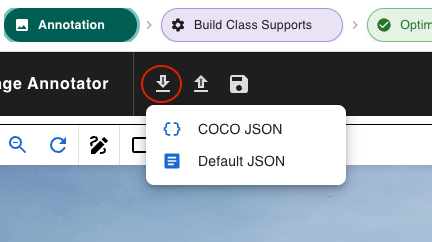
Both options support COCO JSON and Default JSON formats via the Format Switch.
How to Resume a Pipeline
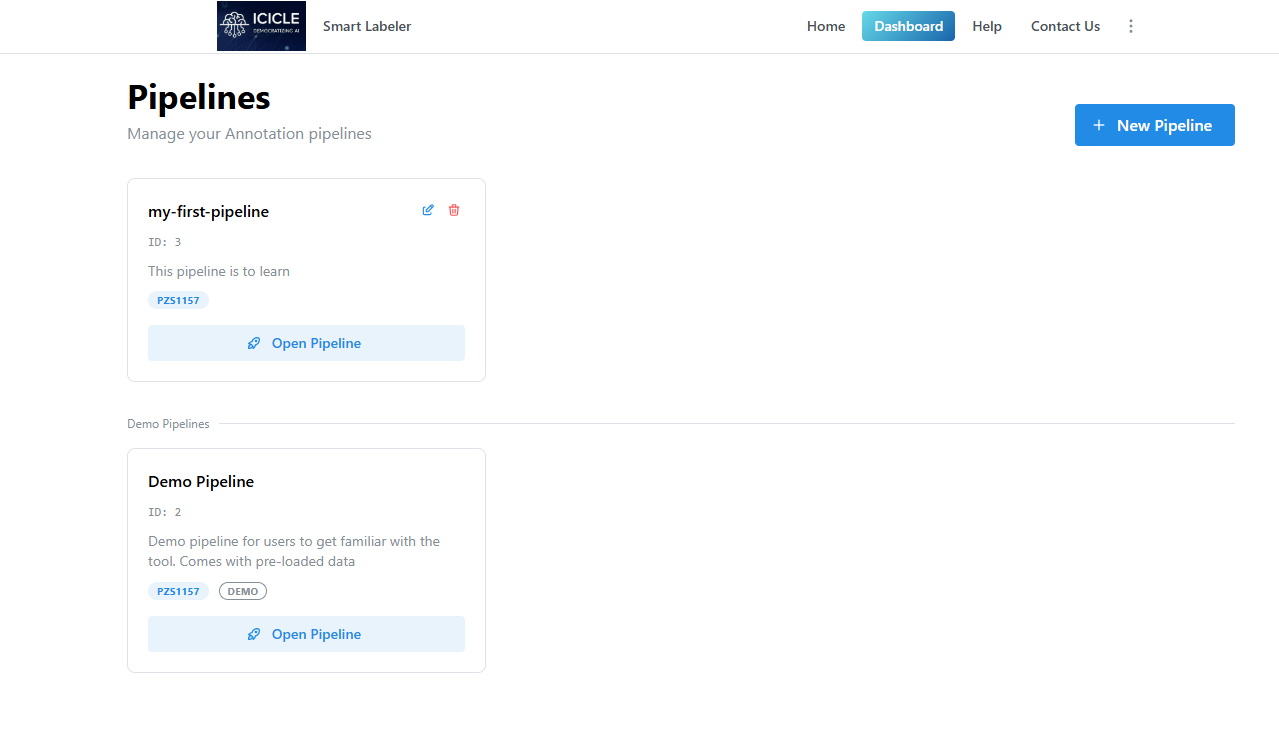
From the Dashboard, use the search or filter controls to locate your pipeline. Click Goto to re-enter at the last completed step.
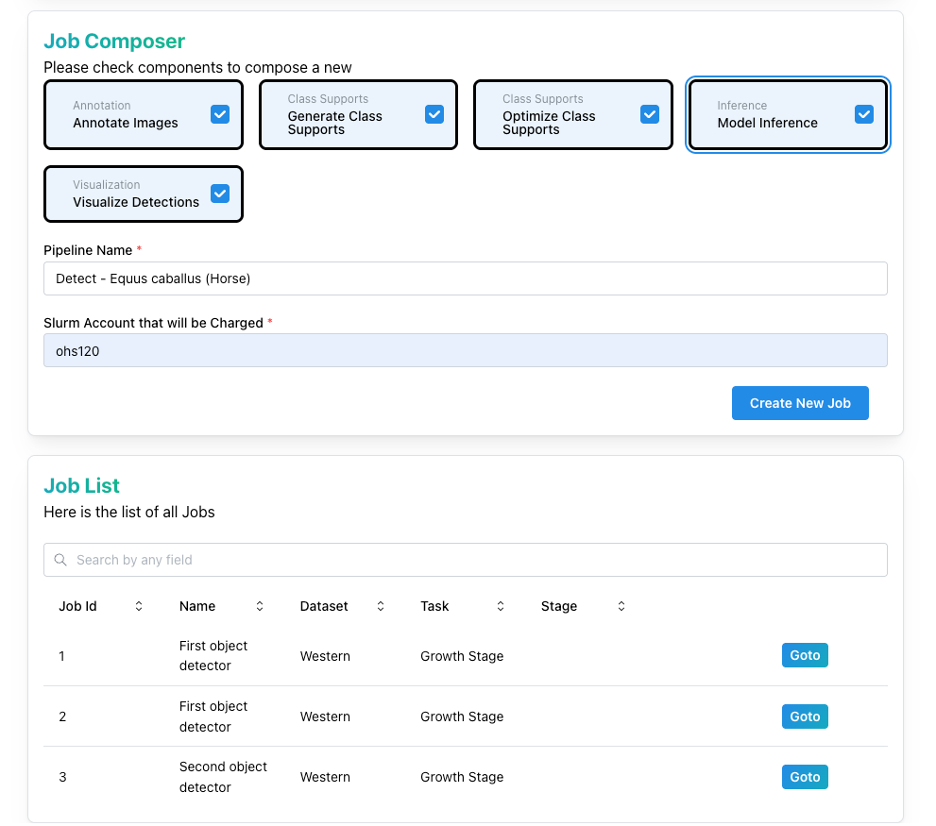
How to Check Job Status and Logs
The pipeline status bar appears at the top of every step. Right-click any step chip to open the context menu.

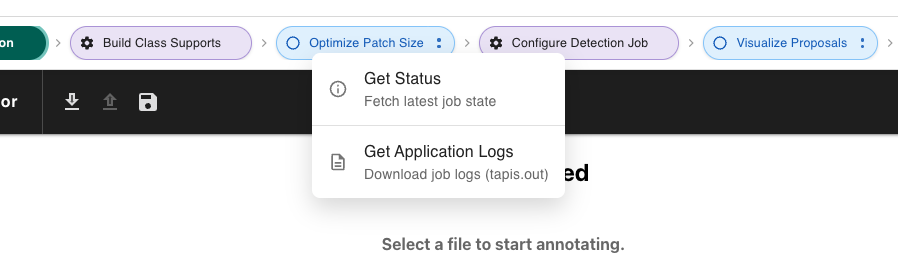
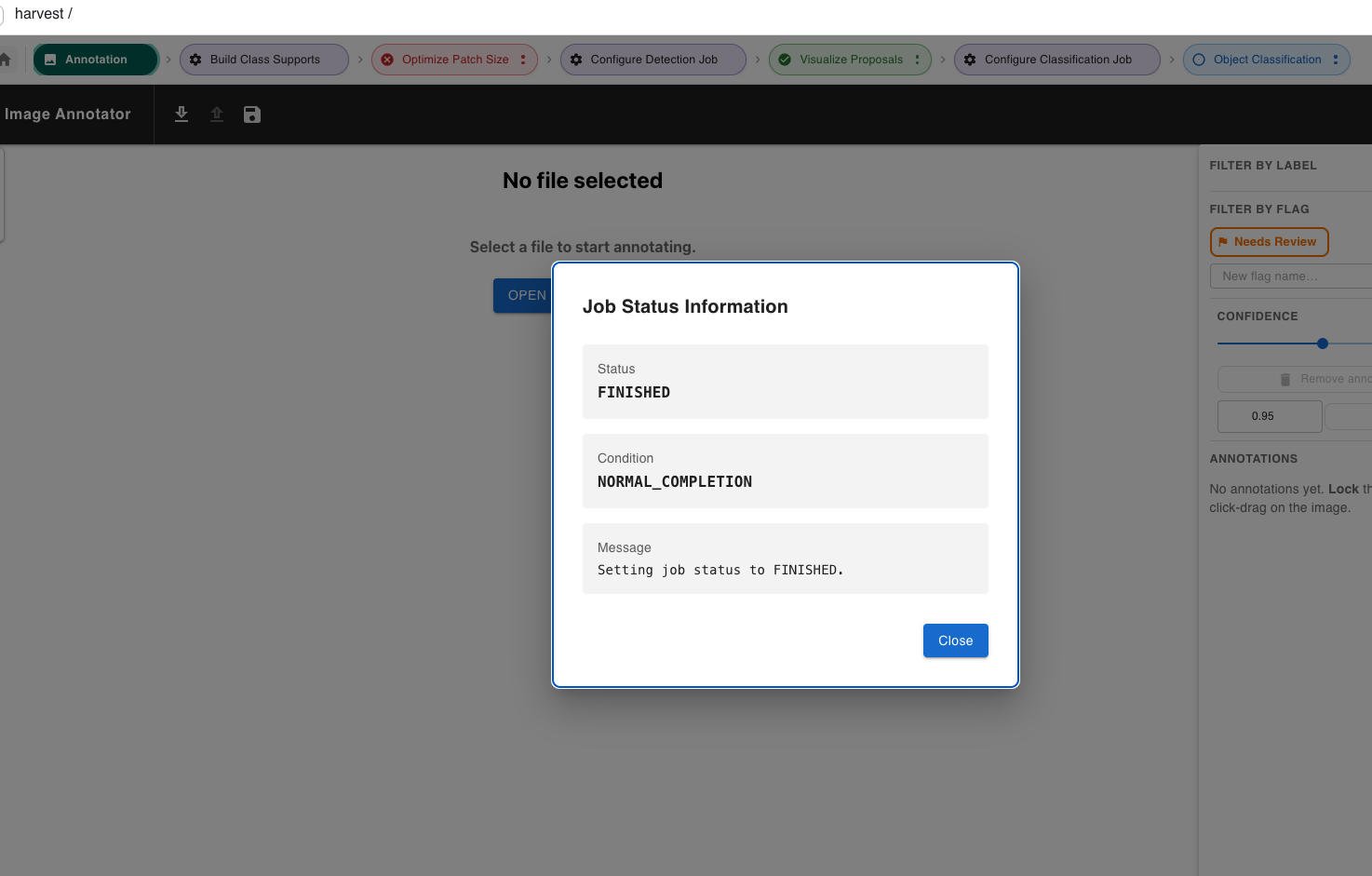
- Select Get Status to poll the Tapis job and view status, condition, and last message.
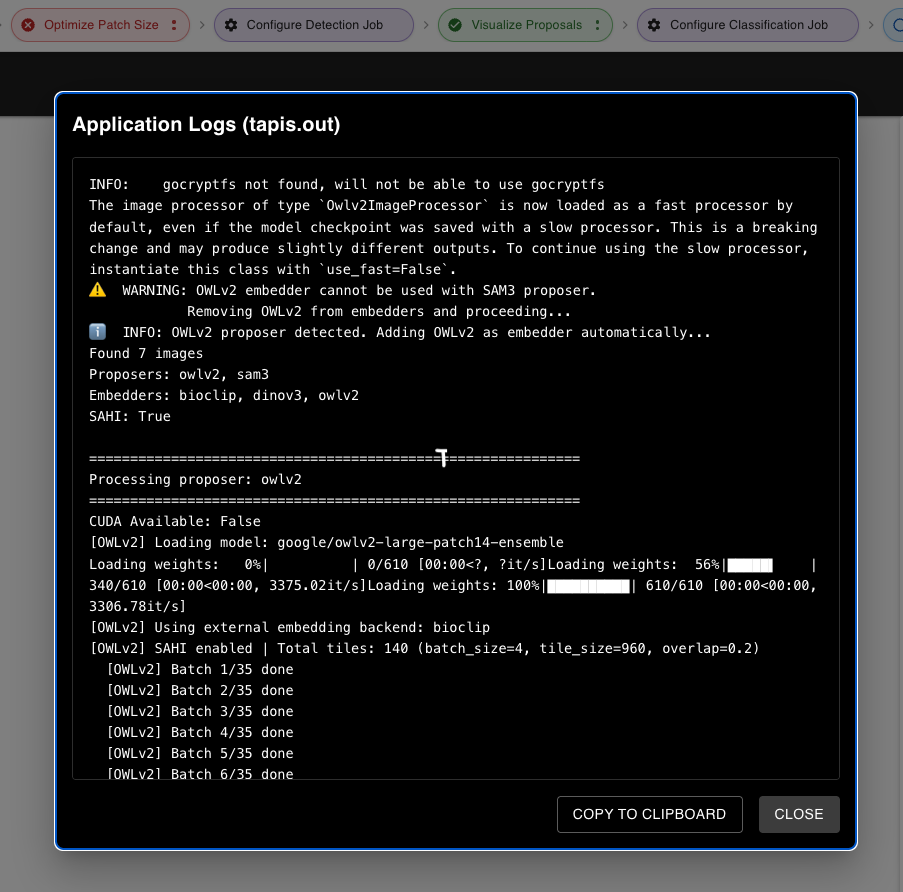
- Select Get Tapis Logs to fetch and display
tapisjob.outfrom the HPC run.
How to Use SAHI Tiling for Small Objects
Enable SAHI when your images are large and objects are small (e.g., aerial imagery, microscopy).
- In Step 2 or Step 4, toggle the SAHI switch.
- Set a Tile Size (pixels) — a good starting point is
960. - Set an Overlap Ratio (e.g.
0.25) so adjacent tiles share context. - Submit as normal. Inference runs on each tile and results are merged with NMS.
How to Use a Gated Hugging Face Model
Some models (e.g. BioClip, certain SAM variants) require a Hugging Face token.
- When selecting a model in the Patra catalog, a prompt appears asking for your HF token.
- Enter the token — it is stored securely in Tapis Vault and never exposed in logs.
- On subsequent submissions the token is retrieved automatically from Vault and injected as
HF_TOKEN.
How to Export Results
- In Step 7, click the Download icon in the results panel.
- Choose COCO JSON for compatibility with tools like CVAT, Roboflow, or MMDetection.
- Choose Default JSON for re-importing into a Smart Labeler pipeline.
- Optionally save directly to a remote Tapis path instead of a local download.